In-App Banner Design Made Easy: Expert Tips, Best Practices, and Tools
Last updated on Wed Dec 24 2025
In-app banners aren’t just for adverts. With the right aesthetics, messaging, and placement, an in-app banner can guide users, highlight new features, or drive engagement within your app. Well-designed banners also boost retention by drawing attention to important updates or promotions. But that only works if you do it right. So, in this guide, we’ll cover in-app banner designs, tips, and tools to help you enhance the user experience and achieve success.
What’s an in-app banner?
An in-app banner is a visual element displayed within a mobile or web application to communicate a message to users. Unlike push notifications or emails, these banners show up while people are actively using the app, making them timely, relevant, and hard to miss. They can appear at the top, bottom, or even in the middle of the screen, and depending on the app, they might be simple and static or interactive and clickable.
Most teams tweak in-app banner designs to highlight new application features, announce updates, or guide users through key actions. These actions may include completing a profile, making a purchase, or exploring premium content.
Banners are also effective for promotions and special offers, and encouraging conversions without disrupting the user experience. However, overly intrusive or irrelevant banners can frustrate users, while thoughtful, well-timed banners feel helpful and informative. With the right approach, in-app banners become a seamless tool for engagement, guiding users and enhancing the overall experience within the app.
Benefits of adding a well-designed in-app banner
A well-designed in-app banner is more than just a visual element. It’s a strategic tool that can enhance engagement, retention, and conversions. Here’s why it matters:
Boosts user engagement: Clear, concise messaging in a small screen space is easy for users to digest. Banners with a focused call-to-action (CTA) can drive users to complete actions like visiting product pages, exploring features, or installing apps.
Higher click-through rates: In-app banners consistently outperform mobile web ads, often generating twice as many clicks. This is because they can be targeted more accurately using device data and insights from user behavior. By showing the right message to the right user at the right time, banners feel relevant rather than intrusive, reducing ad fatigue and boosting the likelihood of user action.
Cost-effective marketing: Compared to other channels like push notifications, social media ads, or mobile web advertising, in-app banners offer a low-cost way to reach a wide audience directly within the app. They deliver messages without interrupting the user experience, making them a highly efficient marketing tool.
Highlights key features and updates: They are perfect for announcing new features, promotions, or important app updates, ensuring users don’t miss essential information.
Enhances retention: Thoughtful banners remind users of your app’s value, encouraging repeat visits and engagement.
Subtle user guidance: Banners can gently guide users through onboarding checklists, tutorials, or app navigation, improving usability without overwhelming them.
Data-driven optimization: Analytics on banner performance allow teams to refine messaging, placement, and design for even better results over time.
The best in-app banner design tools
You don’t have to know coding to create an in-app banner design that fits your goals. Several tools make it easy to design, customize, and deploy banners quickly, and the best of these tools include:
1. Flook
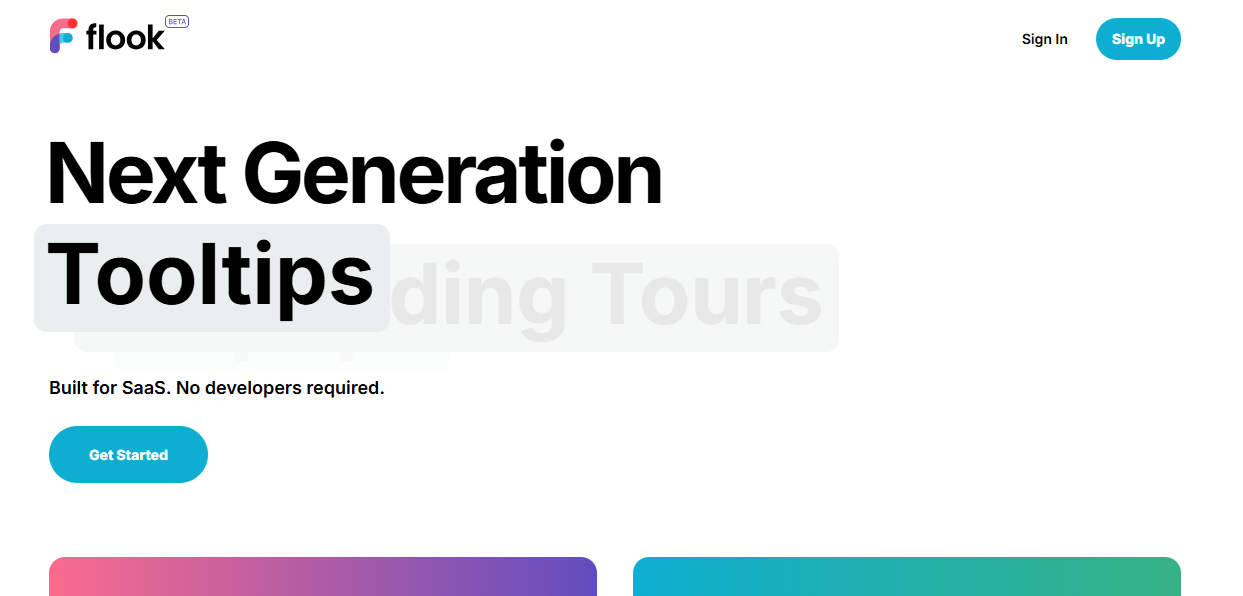
Flook is one of the best tools for in-app banner design because it combines ease of use with powerful features. Its intuitive drag-and-drop interface allows teams to create professional banners quickly, without any coding skills. Need to quickly alert users to a new offer or site maintenance? This one is for you.
Flook also offers pre-built templates and analytics to track performance, helping you optimize campaigns in real time. With precise targeting, you can show the right message to the right user at the right time, boosting engagement and conversions.
2. CleverPush
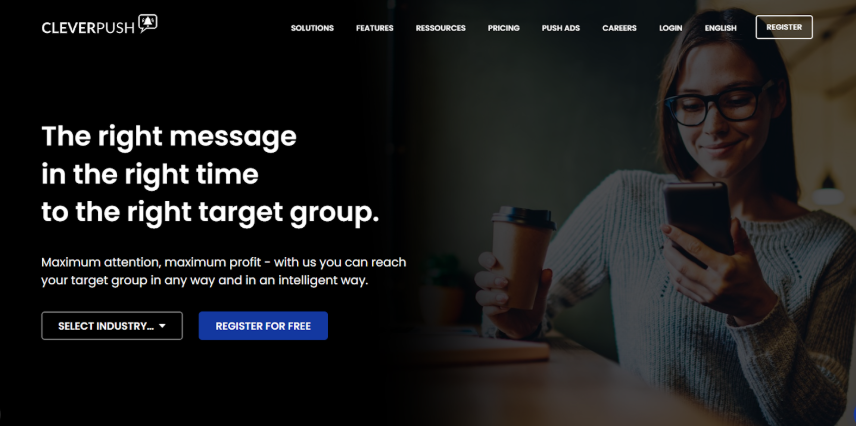
CleverPush makes in-app banners simple, effective, and engaging. Its visually appealing banners grab attention, helping boost user loyalty and retention. Unlike other channels, you can reach 100% of your app users, making it ideal for growing your community and collecting market insights.
By expanding communication channels, CleverPush increases engagement, re-engages inactive users, and even encourages opt-ins from those who previously unsubscribed. This makes it a powerful tool for building lasting audience loyalty.
3. Userflow
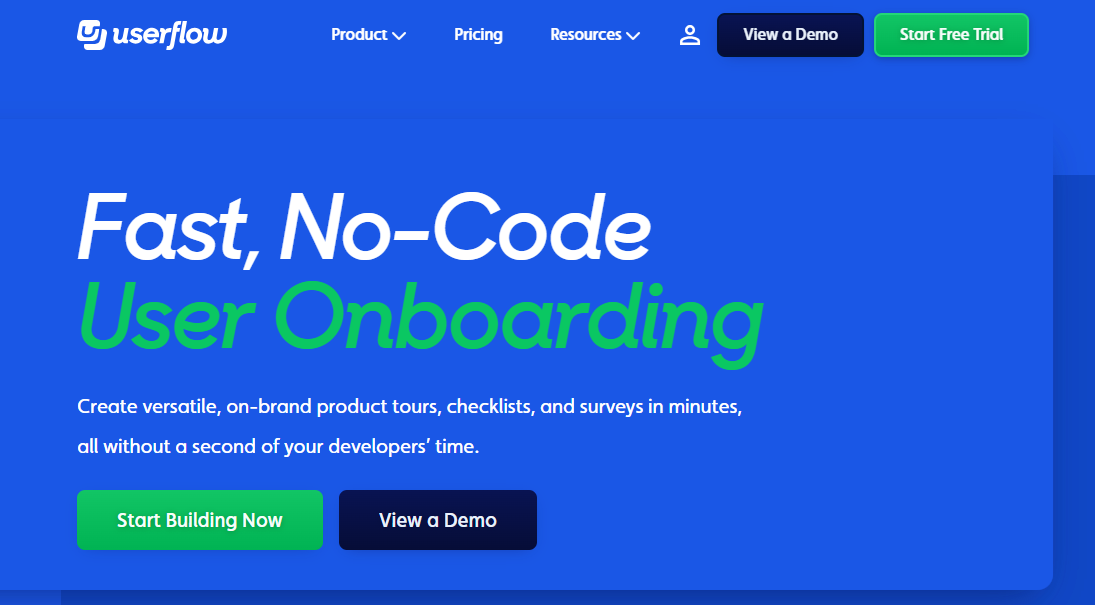
Instead of just notifying users, Userflow helps walk them through key actions, like onboarding steps, feature adoption, or completing a purchase. Its drag-and-drop builder makes creating banners quick and visually cohesive with your app’s design.
With smart triggers and segmentation, banners appear exactly when users need guidance, increasing interaction without feeling pushy. Plus, Userflow integrates analytics directly into the workflow, allowing teams to measure impact on user behavior, optimize banner timing, and improve overall in-app engagement.
4. Userlist
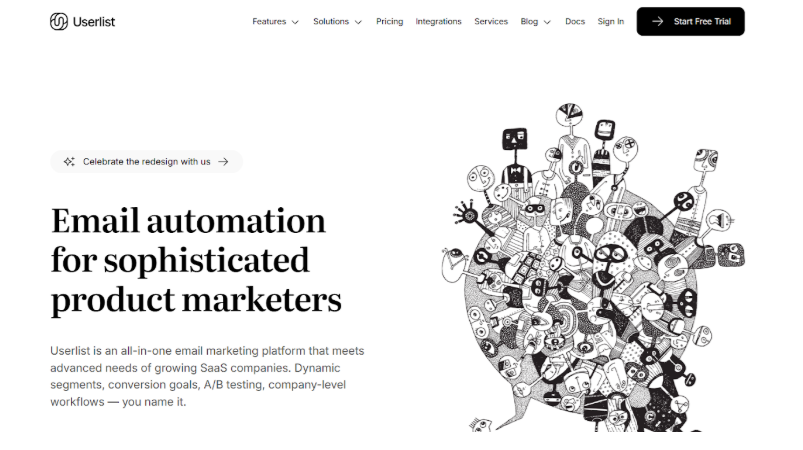
Userlist makes in-app banners simple, contextual, and effective for SaaS apps. With a lightweight JavaScript snippet, you can quickly add banners and customize their look to match your branding. Use them to deliver onboarding tips, feature updates, promotions, or company news when users are actively engaging with your product.
Messages are mobile-responsive, stack neatly to avoid clutter, and automatically expire to stay relevant. Integrated with email and automation campaigns, Userlist ensures consistent messaging across channels while reducing support load and boosting feature adoption. It’s a smart, non-intrusive way to engage users and drive meaningful action.
5. OneSignal
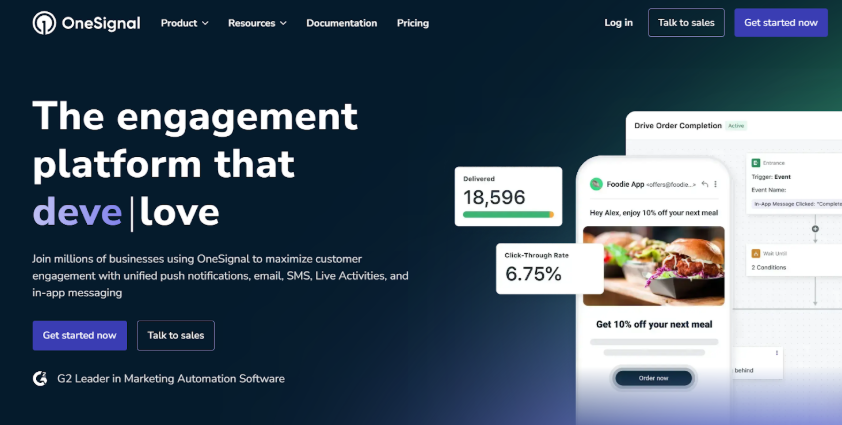
OneSignal makes designing in-app banners easy, flexible, and highly engaging. Its drag-and-drop visual editor lets you build banners without any coding, using blocks, layouts, and carousels for multi-step flows like onboarding or feature tours. Choose from top, bottom, center, or full-screen placements and customize text, images, buttons, and backgrounds to match your brand.
Personalization and localization options let you tailor messages to each user, while responsive design ensures banners look great on any device. With previews, analytics, and user targeting, OneSignal helps deliver relevant, high-converting in-app messages that enhance engagement without disrupting the experience.
6. Mobbin
Mobbin is a go-to platform for designers seeking inspiration for in-app banners. It offers a curated library of real-world UI patterns from top apps, showcasing layouts, color schemes, typography, and interaction flows that work.
While not a banner builder, Mobbin helps teams create visually appealing and effective banners by learning from proven examples. Designers can explore creative ideas, avoid common UX mistakes, and ensure their banners feel native and engaging. By leveraging Mobbin, teams can craft banners that capture attention, drive user engagement, and enhance the overall app experience.
7. UserPilot
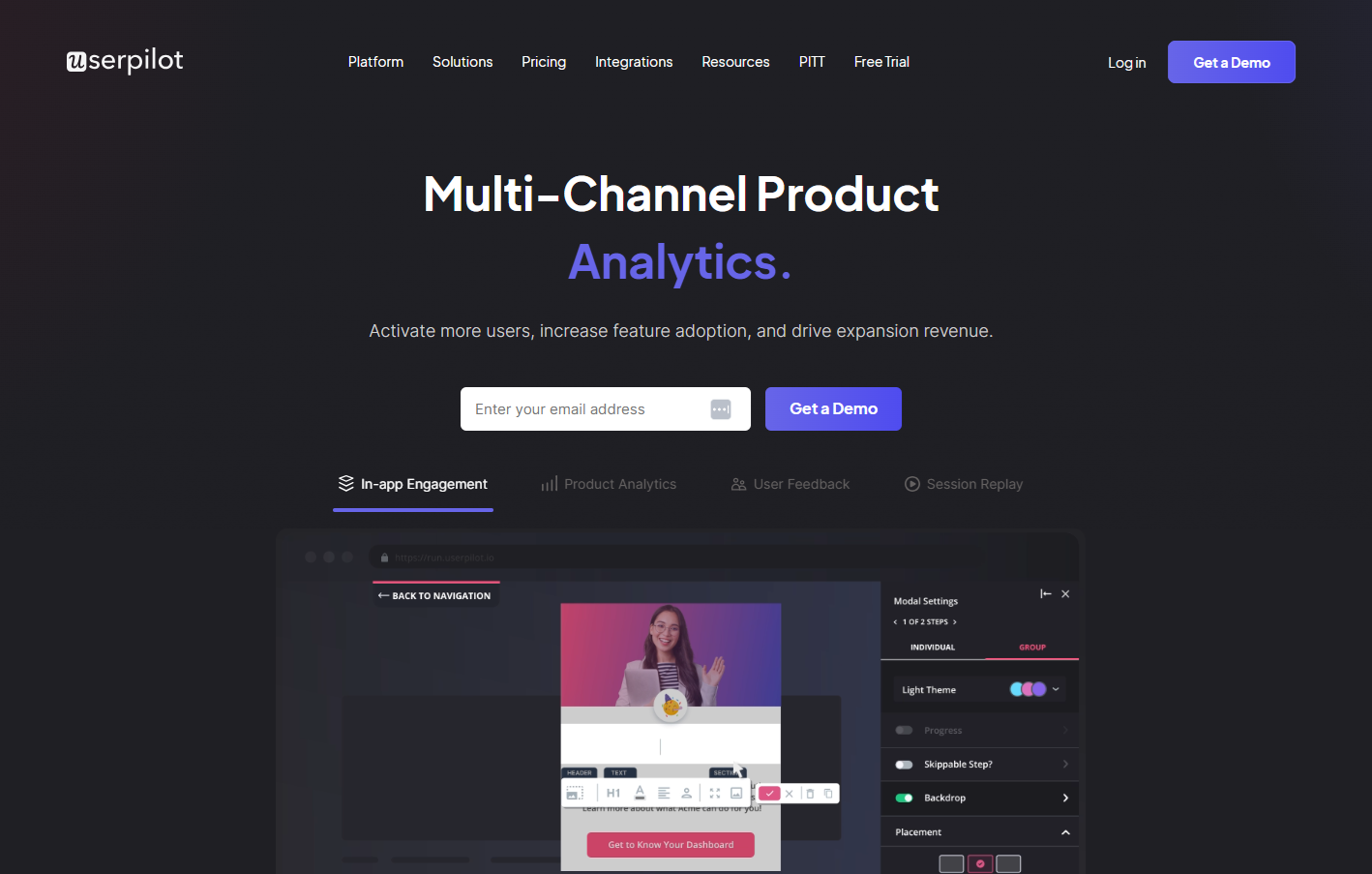
Userpilot helps teams engage and guide users with context-sensitive in-app banners that deliver announcements, updates, and subtle prompts without interrupting workflow. Whether highlighting new features, scheduled maintenance, or product tips, banners can be placed flexibly across web and mobile apps to reach users exactly when needed.
Combined with tooltips and hotspots, Userpilot ensures users understand and adopt features faster, boosting engagement and retention. Its customization options allow you to adjust themes, colors, placement, and frequency, while robust analytics let you track performance and target messages to specific user segments.
8. Bannersnack
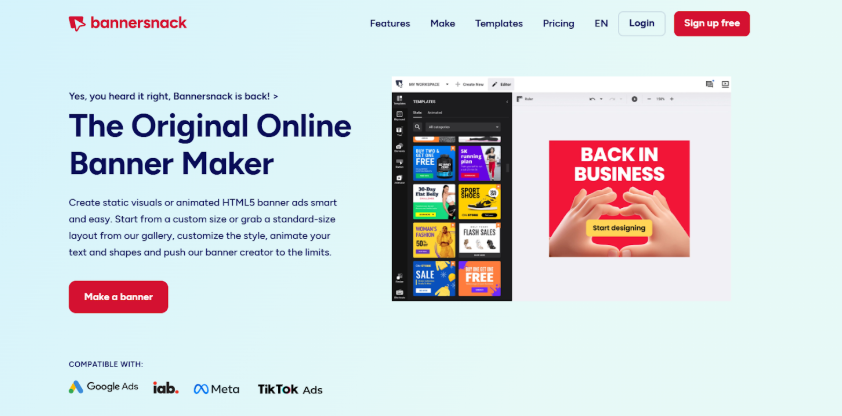
Bannersnack is a cloud-based, all-in-one platform that makes designing in-app banners fast, easy, and professional. Its drag-and-drop editor lets you create static, animated, or HTML5 banners without coding skills, using a library of high-quality fonts, stock images, and over 1,000 templates.
You can quickly scale designs across multiple sizes and platforms. With responsive layouts, smooth animations, and video support, banners look great on any device. Real-time team collaboration ensures efficiency, making Bannersnack ideal for producing visually engaging, high-converting banners for apps, ads, and digital campaigns.
How to design and install an in-app banner with Flook
Follow these easy steps to create your own in-app banners without coding.
1. Log in to your Flook account
Install the Flook Builder Chrome Extension, it lets you create, edit, and preview banners directly in your browser. Access your Flook dashboard and make sure the platform is integrated with your app.
2. Create a new banner
From the Flook dashboard, select “Banners” as your widget type. Choose the appropriate format (top, bottom, or inline) depending on your app’s layout and purpose.
3. Design your banner
Use Flook’s drag-and-drop builder or Chrome extension to customize every detail, including:
Visuals: background, colors, and layout
Text elements: header, description, and CTA button
Branding: upload images and logos, or create a custom theme in Flook for consistent styling across all banners.
4. Configure your triggers and targeting
Set rules to control when and to whom the banner appears. You can trigger it on app launch, after specific user actions, or based on user segments and behaviors.
5. Generate and install the banner code
Once the design is finalized, generate the embed code or widget snippet from Flook. Add it to your app’s codebase or integrate it through your app management system.
6. Test and preview
Use Flook’s preview feature to check how your banner appears on different devices and screen sizes. Adjust its timing, position, and dismiss options to balance visibility and user experience.
7. Publish and monitor performance
Deploy your banner live. Then, track engagement through Flook analytics to monitor impressions, clicks, and conversions to identify what’s working and where to improve.
8. Refine and optimize
Use data insights to tweak visuals, copy, or triggers. A/B test variations to continuously improve your in-app banner performance.
In-app banner design best practices
Designing an in-app banner is only half the job. Following these best practices ensures it looks great, feels natural in your app, and actually drives user engagement.
Keep it simple and focused: Avoid clutter. A short headline, clear message, and one strong CTA are all you need. Users should understand the message within seconds.
Match your app’s look and feel: Maintain brand consistency by aligning fonts, colors, and icons with your app’s visual identity. A cohesive design feels more trustworthy and less intrusive.
Prioritize timing and relevance: Show banners at the right time, like after a user finishes an action or pauses in the app. Poor timing makes them feel spammy.
Choose strategic placement: Top or bottom banners work best for subtle guidance; center or full-width banners suit important announcements. Always ensure they don’t block core app functions.
Make your CTA stand out: Use contrasting colors and action-oriented text (“Try Now,” “Learn More”). Limit to one CTA per banner to avoid confusion.
Optimize for mobile responsiveness: Design with different screen sizes in mind. Test across devices to ensure readability, touch accuracy, and alignment.
A/B test and iterate: Experiment with variations in design, copy, and timing. Use analytics to track engagement and continuously refine performance.
Respect user experience: Allow easy dismissal options. Non-intrusive, user-friendly banners encourage engagement rather than annoyance.
Personalize where possible: Use user data to personalize messages, like showing tips to new users or upgrade offers to loyal ones.
FAQs
What is an in-app banner?
An in-app banner is a small message or graphic that appears within a mobile or web app. It’s often used to promote new features, display offers, or deliver updates while users interact with the app—without interrupting their experience.
How do I design an effective in-app banner?
Focus on clarity and relevance. Use concise text, appealing visuals, and a strong call-to-action. Stick to your brand’s color palette and typography for consistency, and ensure the banner looks great across devices and screen sizes.
Where should I place in-app banners?
Place banners in high-visibility areas where users naturally pause or engage, such as home screens or post-action screens. Avoid intrusive placements—timing and context are key to keeping users engaged without frustrating them.
What tools can I use to design in-app banners?
With Flook, designing, testing, and deploying in-app banners becomes easier. It provides access to templates, analytics, and customization options without requiring any coding experience.